Using Living Way Screensaver for Daily Inspiration
Published in Tips & Tutorials · Saturday 16 May 2026 · 4 minutes

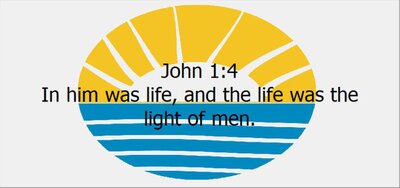
The Living Way Screensaver is exclusively made for Christian believers to encourage you with reminders regarding hope, faith, brotherly love, and daily Christian living. This screensaver is designed to provide you with constant reminders of comforting and memorable scripture passages from God’s word. The biblical passages randomly transition from one scripture to the next, giving you reminders and encouragement and fortifying your faith with precious biblical promises. In addition to quoting the passage, the chapter and verse of the scriptures are also cited.
This screen saver is primarily a Windows 10/11 screensaver, which works with older versions of Windows, including Windows XP.
There are many screensavers out there covering all kinds of special interests. However, if you are looking for a Bible verse screensaver, you will love this one!
NOTE: Although screensavers may no longer be required for newer flat-panel LCD monitors, they can still be pleasantly entertaining. If you are concerned about saving energy, you can set your screensaver to turn off your display after a few minutes. To control your power settings, please look for the “Power management” or “Change power settings” option under “Screen saver settings”.
Additionally, you can change the screensaver’s settings to play popular Christian hymns together with the scripture passages. This feature lets you enjoy Christian music alongside images of biblical passages.
NOTE: All hymns and sounds are turned off by default. If you want to hear spiritual melodies accompanied by biblical images, you can change this feature in the screensaver settings.
How to Turn Hymns On/Off
To control whether you hear hymns or not, you will need to either turn sound on or off for this screensaver. However, to turn sound on or off, please select your Windows version below and follow the step-by-step instructions.
Windows XP:
1. Start by right-clicking on an empty area of the Desktop.
2. Click on “Properties”.
3. Next, click on “Screen Saver”
4. Click on “Settings”
5. Next, click on the “Sound” tab.
6. Clear the “Mute sounds” checkbox to turn on hymns, or set it to checked to turn off hymns.
7. Finally, click on the “Close” button.
Windows Vista:
1. Click on the Start button.
2. Next, click on Control Panel.
3. Click on “Appearance and Personalization”.
4. Next, double-click on “Personalization”
5. Click on “Screen Saver”
6. Next, click on “Settings”
7. Click on the “Sound” tab.
8. Clear the “Mute sounds” checkbox to turn on hymns, or set it to checked to turn off hymns.
9. Finally, click on the “Close” button.
Windows 7:
1. Click on the Windows Start button.
2. Next, click on Control Panel.
3. Click on “Appearance and Personalization”.
4. Next, click on “Personalization”
5. Click on “Screen Saver”
6. Next, click on “Settings”
7. Click on the “Sound” tab.
8. Clear the “Mute sounds” checkbox to turn on hymns, or set it to checked to turn off hymns.
9. Finally, click on the “Close” button.
Windows 8/8.1:
1. Right-click on an empty area of the Desktop.
2. Click on “Personalize”.
3. Next, click on “Screensaver”
4. Click on “Screensaver Settings”
5. Next, click on “Settings”
6. Click on the “Sound” tab.
7. Clear the “Mute sounds” checkbox to turn on hymns, or set it to checked to turn off hymns.
8. Finally, click on the “Close” button.
Windows 10:
1. Right-click on an empty area of the Desktop.
2. Select “Personalization” or “Personalize”.
3. Click on “Lock Screen”.
4. Next, click on “Screen saver settings”
5. Click on “Settings...”
6. Next, click on the “Sound” tab.
7. Clear the “Mute sounds” checkbox to turn on hymns, or set it to checked to turn off hymns.
8. Finally, click on the “Close” button.
Windows 11:
1. Click on the Windows icon on the taskbar
2. Click on Settings
3. Type “screen saver” in the search bar
4. Then, click on “Change screen saver”
5. Click on “Settings”
6. Select the “Sound” tab
7. Uncheck “Mute sounds” to turn on hymns, or check it to turn off hymns